Write PLC Programs with an AI Agent
This guide shows you how to connect an AI coding agent to IronPLC’s MCP server so that the agent can write, validate, and compile IEC 61131-3 programs on your behalf.
MCP (Model Context Protocol) is an open protocol that lets AI agents call external tools. IronPLC ships an MCP server called ironplcmcp that gives any compatible agent access to the IronPLC compiler — the agent can check syntax, run semantic analysis, look up error explanations, and compile programs without you running commands manually.
Note
This guide assumes you have installed the IronPLC Compiler. See Installation if you have not already installed it.
Prerequisites
IronPLC installed with ironplcmcp on your
PATH. The MCP server is included automatically when you install IronPLC.An MCP-compatible AI agent. See the next section for setup instructions for several popular agents.
Configure the MCP Server
Add IronPLC as an MCP server in your agent’s configuration. Pick the tab that matches your agent.
Open . This opens
claude_desktop_config.jsonin your editor.Add the
ironplcentry to themcpServersobject:{ "mcpServers": { "ironplc": { "command": "ironplcmcp" } } }
Save the file and restart Claude Desktop.
In a new conversation, look for the tools icon (hammer) in the chat input area. Click it to confirm that IronPLC tools appear in the list.
Open the Cline sidebar in VS Code.
Click MCP Servers, then Configure MCP Servers. This opens
cline_mcp_settings.json.Add the
ironplcentry to themcpServersobject:{ "mcpServers": { "ironplc": { "command": "ironplcmcp" } } }
Save the file. Cline reloads automatically.
Confirm that IronPLC tools appear in the MCP Servers list with a green indicator.
Create a file called
.mcp.jsonin your project root:{ "mcpServers": { "ironplc": { "command": "ironplcmcp" } } }
Start Claude Code in that directory. The MCP server connects automatically.
Type /mcp to confirm that the IronPLC server is listed and connected.
Create a file called
opencode.jsonin your project root:{ "$schema": "https://opencode.ai/config.json", "mcp": { "ironplc": { "type": "local", "command": ["ironplcmcp"], "enabled": true } } }
Start OpenCode in that directory. The MCP server connects automatically.
Run opencode mcp list to confirm that the
ironplcserver is listed asconnected.
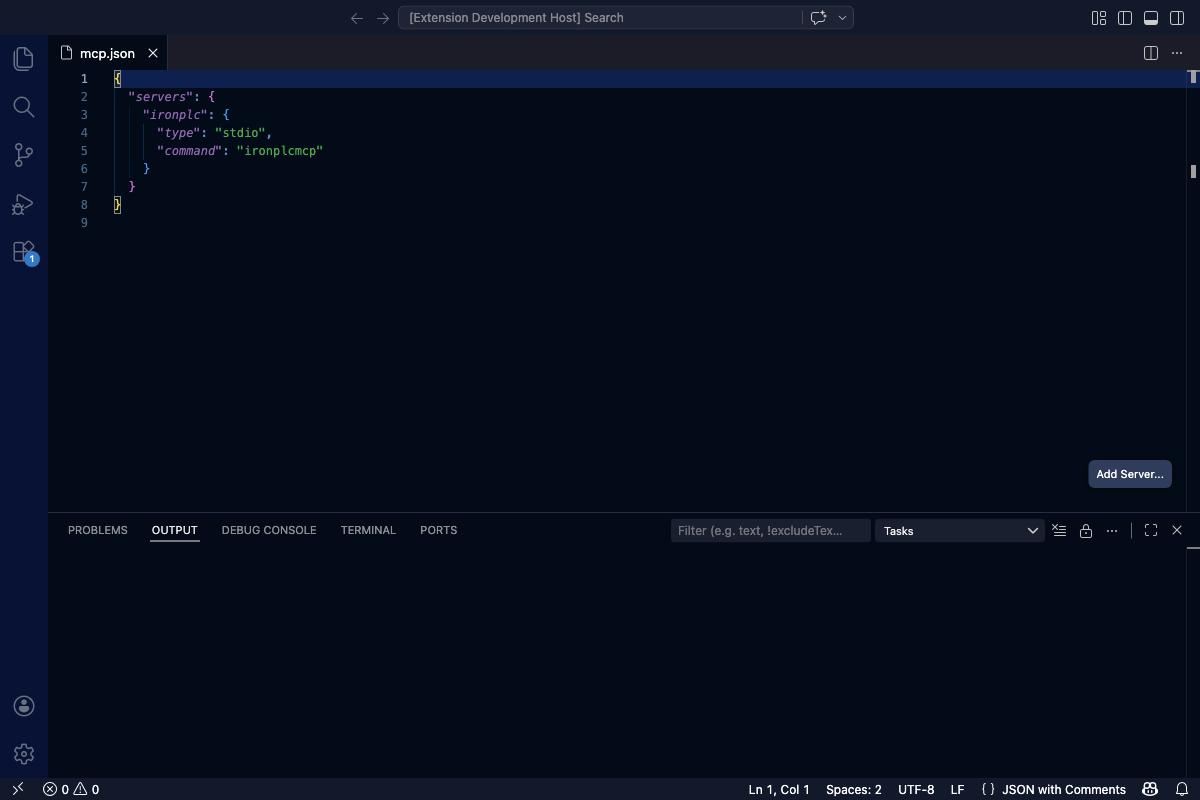
An MCP configuration file with the IronPLC server entry.
Write a Motor Start/Stop Program
Ask your agent to write a motor start/stop program. Copy or adapt the prompt below to match your requirements:
Write an IEC 61131-3 Structured Text program for a motor
start/stop circuit. Requirements:

- A momentary Start pushbutton
- A normally-closed Stop pushbutton
- An overload relay contact
- A motor contactor output
- A running indicator lamp

Include a CONFIGURATION block so I can compile and run it.
The agent will draft the program and validate it automatically.
Hint
Under the hood, the agent calls IronPLC’s check tool to validate
the code against the IEC 61131-3 standard. If there are errors, it
calls explain_diagnostic to look up the error explanation, fixes
the code, and checks again — all without you running any commands.
After one or more rounds of checking, the agent should produce a working program. The result will look similar to:
PROGRAM MotorControl
VAR
    StartButton : BOOL;    (* Momentary start pushbutton *)
    StopButton : BOOL;     (* Normally closed stop pushbutton *)
    OverloadTrip : BOOL;   (* Overload relay contact *)
    MotorContactor : BOOL; (* Motor contactor output *)
    RunningLamp : BOOL;    (* Running indicator lamp *)
END_VAR

    (* Seal-in circuit: Start latches on, Stop or Overload breaks *)
    MotorContactor := (StartButton OR MotorContactor)
                      AND StopButton
                      AND NOT OverloadTrip;

    RunningLamp := MotorContactor;

END_PROGRAM

CONFIGURATION config
    RESOURCE resource1 ON PLC
        TASK MainTask(INTERVAL := T#100ms, PRIORITY := 1);
        PROGRAM prog1 WITH MainTask : MotorControl;
    END_RESOURCE
END_CONFIGURATION
Iterate on the Design
You can refine the program in follow-up messages. For example, ask the agent to add a star-delta starter:
Add a star-delta starter with a 5-second changeover timer
using TON. Add Star, Delta, and Main contactors.
The agent will modify the program, validate the changes with check,
and produce an updated version:
PROGRAM MotorControl
VAR
    StartButton : BOOL;
    StopButton : BOOL;
    OverloadTrip : BOOL;
    Running : BOOL;
    StarContactor : BOOL;
    DeltaContactor : BOOL;
    MainContactor : BOOL;
    RunningLamp : BOOL;
    ChangeoverTimer : TON;
END_VAR

    Running := (StartButton OR Running)
               AND StopButton
               AND NOT OverloadTrip;

    ChangeoverTimer(IN := Running, PT := T#5s);

    StarContactor := Running AND NOT ChangeoverTimer.Q;
    DeltaContactor := Running AND ChangeoverTimer.Q;
    MainContactor := Running;

    RunningLamp := Running;

END_PROGRAM

CONFIGURATION config
    RESOURCE resource1 ON PLC
        TASK MainTask(INTERVAL := T#100ms, PRIORITY := 1);
        PROGRAM prog1 WITH MainTask : MotorControl;
    END_RESOURCE
END_CONFIGURATION
Hint
When you are satisfied with the program, ask the agent to compile it.
The agent calls the compile tool to produce bytecode that the
IronPLC runtime can execute.
Tips for Effective Prompts
Specify inputs and outputs explicitly. Name the variables and their types so the agent does not have to guess.
Mention timing requirements. Include timer values, scan cycle assumptions, or pulse durations as appropriate.
Reference standard library blocks by name. Use
TON,TOF,CTU,SR, and other IEC 61131-3 blocks when you know what you need.Ask the agent to validate. Tell the agent to check the code before considering it final. Some agents do this automatically; others benefit from the reminder.
Request a specific dialect. If your target runtime needs a particular IEC 61131-3 edition, mention it (for example,
iec61131-3-ed3for third-edition features).
See Also
Quick start tutorial — step-by-step tutorial for writing your first IronPLC program
Structured Text Basics — Structured Text language overview
Problem Codes — compiler error code reference